
Most invoicing apps can export your data as Excel or CSV. The import wizard reads that file, matches the columns and shows you everything before anything is saved.
In this guide
-
1Export from your old app
In your old app, look for Export or Download and choose Excel or CSV. Do it separately for customers, items and invoices if the app asks. Zoho Invoice, Invoiless, Refrens, FreshBooks, Wave, QuickBooks and others all have this.
-
2Upload the file
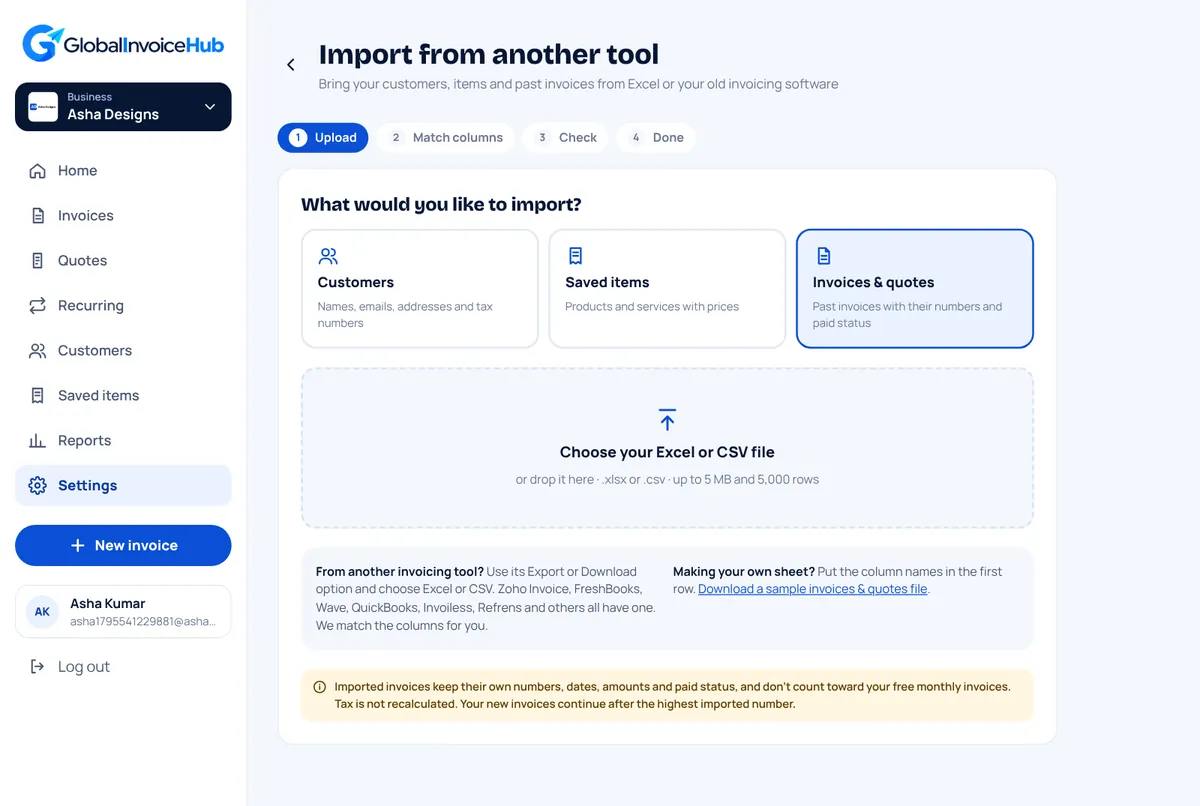
Open Settings › Your data › Import from another tool. Choose what you are importing (customers, saved items or invoices and quotes) and upload the file (.xlsx or .csv, up to 5 MB and 5,000 rows).
-
3Match the columns and check
The columns are matched for you, for example “Client name” to Customer. Change any match with the drop-downs, or choose Don’t import. The check step lists any rows with problems, such as a missing customer or a bad date, before you import.
-
4Continue your numbering
Imported invoices keep their own numbers, dates, amounts and paid status, and do not count toward your free invoices. New invoices continue after the highest imported number, in the same format.
Good to know
- Made a mistake? A whole import can be undone within 7 days.
- Making your own spreadsheet? Download the sample file in the wizard and put your column names in the first row.
Questions
Is tax recalculated on imported invoices?
No. Imported invoices keep exactly the amounts and tax from your old app.
Do imported invoices use up my free plan?
No. Only invoices you create in GlobalInvoiceHub count toward the 5 free invoices a month.