
Press New invoice on Home, or the round + button at the bottom of your phone screen. The form opens step by step: first the customer, because their location decides the tax, then the rest.
In this guide
-
1Choose the customer
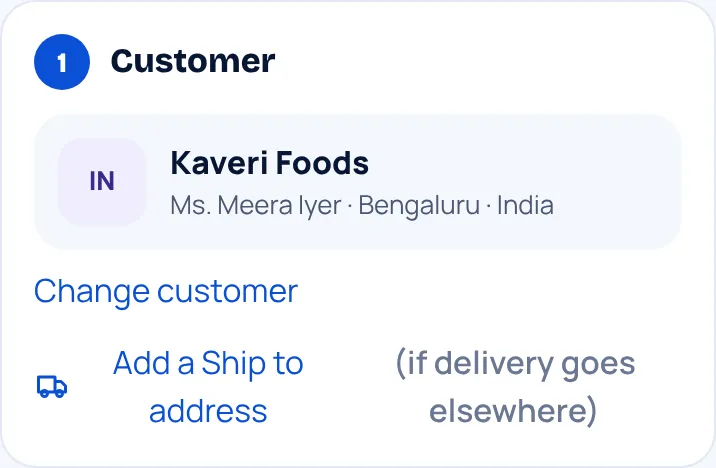
Type the customer’s name and pick them from the list, or press + New customer to add one (how to add a customer). Their country and state decide the tax and the currency.
-
2Add what you are billing for
For each item choose Product (goods you sell or supply) or Service (work you do). Give it a name and, if you like, a short description printed smaller under the name.
Enter the Quantity and the Rate: the Amount is worked out as you type. For example 25 photos at ₹400 is ₹10,000, or 14 staff at ₹5,000 is ₹70,000. The Unit is optional (hours, blogs, staff, years) and is printed next to the quantity.
For a single fixed price, such as a domain renewal, leave the quantity at 1 and the unit empty: the invoice then shows just the amount.
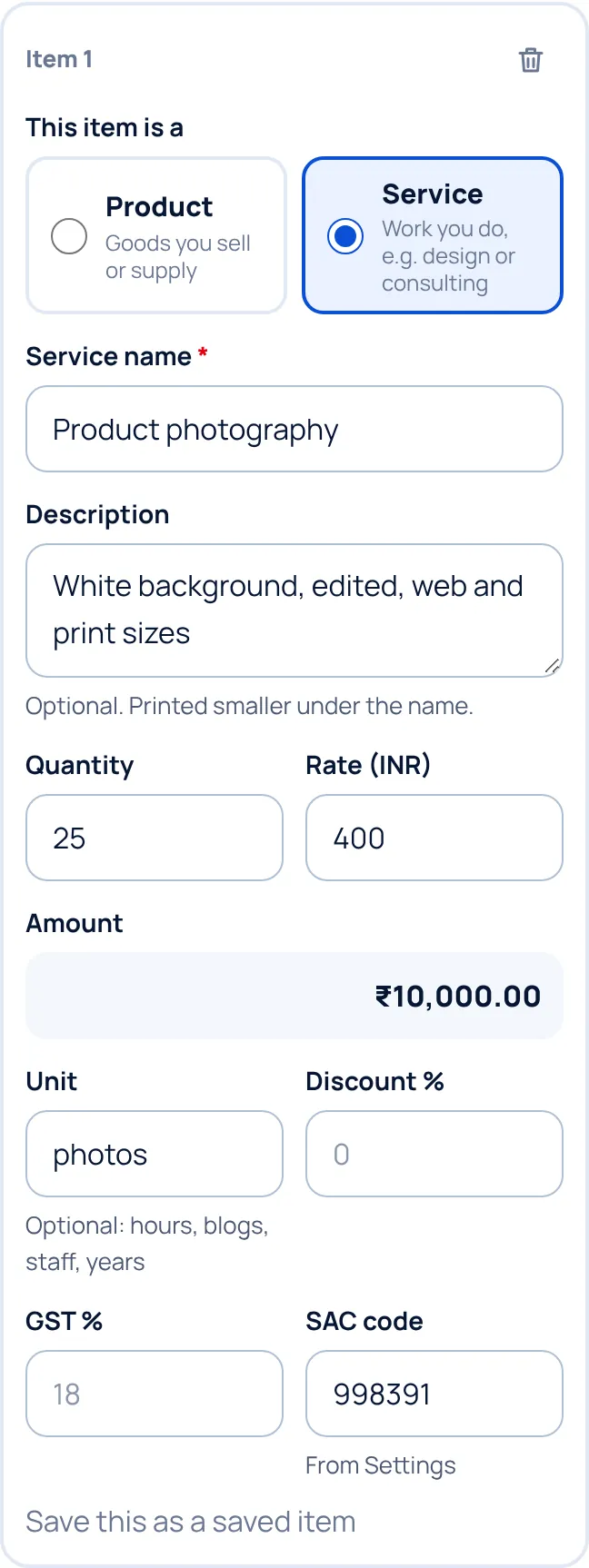
A Discount % can be given per item. In India the SAC code (services) or HSN code (goods) is filled in from Settings. Press Add another item for more lines, and Save this as a saved item to reuse an item next time.
-
3Check the number and dates
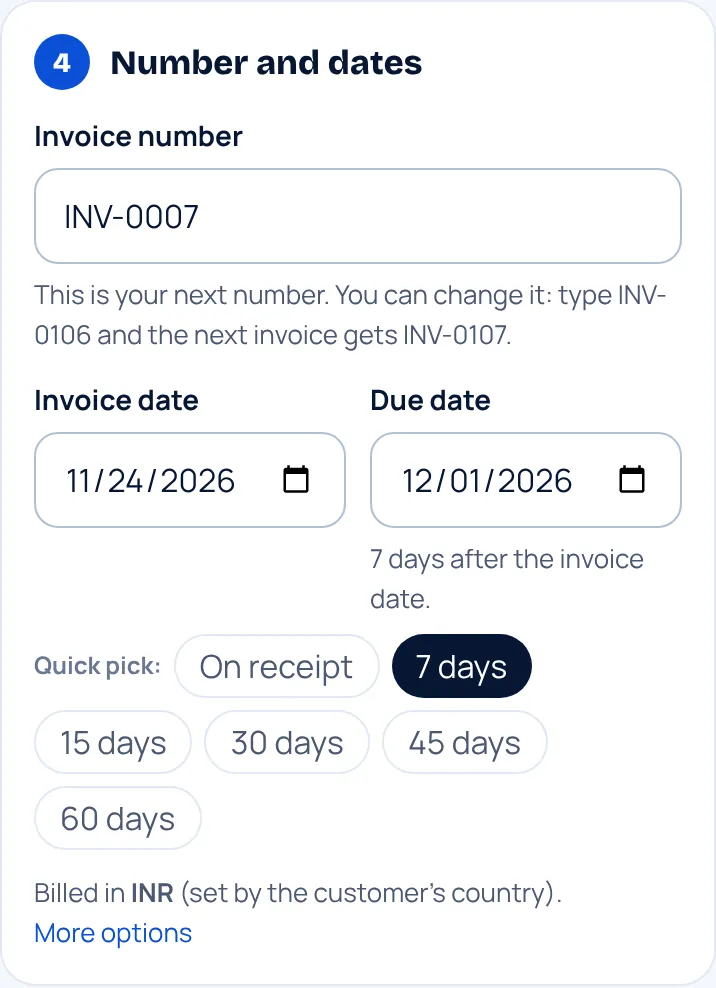
The Invoice number box shows your next number, for example INV-0006. You can leave it, or type another one: the next invoice continues from it (type INV-000106 and the next one is INV-000107).
Pick the invoice date and the due date. The quick buttons (On receipt, 7, 15, 30, 45 or 60 days) set the due date for you.
-
4Check the total and save
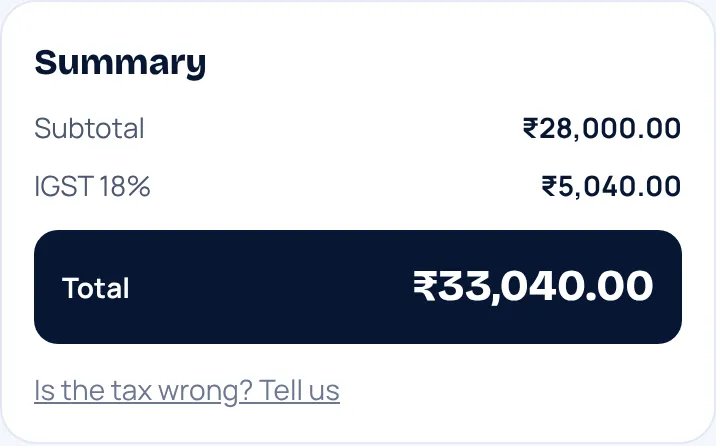
The Summary shows the subtotal, each tax and the total. Press Save invoice. Until you send or download it, it stays a draft you can change freely.
Good to know
- Notes and terms (for example “Thank you for your business”) can be set once in Settings › Invoice defaults and are added to every invoice.
- Billing a customer abroad? Their currency is used automatically. See GST invoices for exports.
- If the tax looks wrong, use Is the tax wrong? Tell us under the summary. We check every report.
Questions
How do I show quantity and price for a service?
Enter the quantity and the rate on the service item, and optionally a unit such as hours, blogs or staff. The invoice prints the quantity, unit and rate, and the amount is quantity × rate.
Can I change the invoice number?
Yes, while creating the invoice and until it is issued. Once it is sent or downloaded the number is fixed, as tax rules require.
What is the difference between Product and Service?
Products are goods you sell or supply and use an HSN code; services are work you do and use a SAC code. The tax is worked out the same way.