
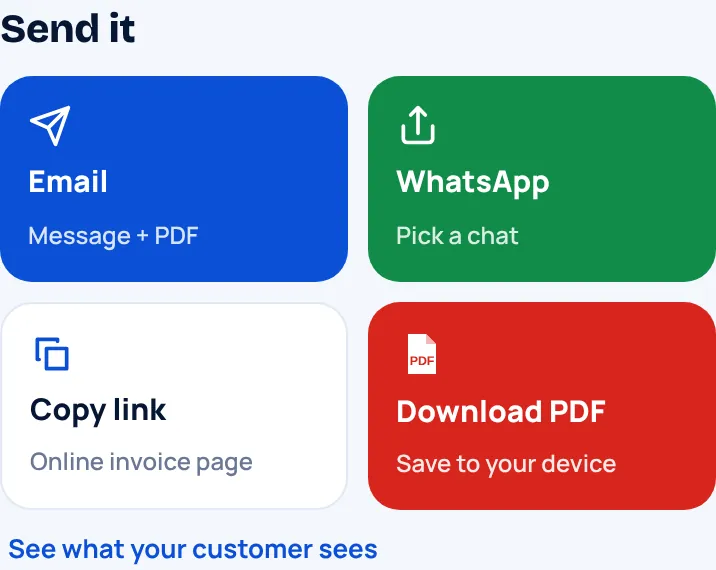
Open the invoice and look for Send it. Each option sends the same invoice; choose whatever your customer prefers.
-
1Choose how to send
Email sends a message with the PDF attached and a View invoice button. WhatsApp opens your WhatsApp with a short message and the invoice link: pick the chat. Copy link copies the address of the online invoice page. Download PDF saves the PDF to your device.
Sending or downloading issues the invoice: its customer and number are fixed from then on, as tax rules require.
-
2Emailing: check the message
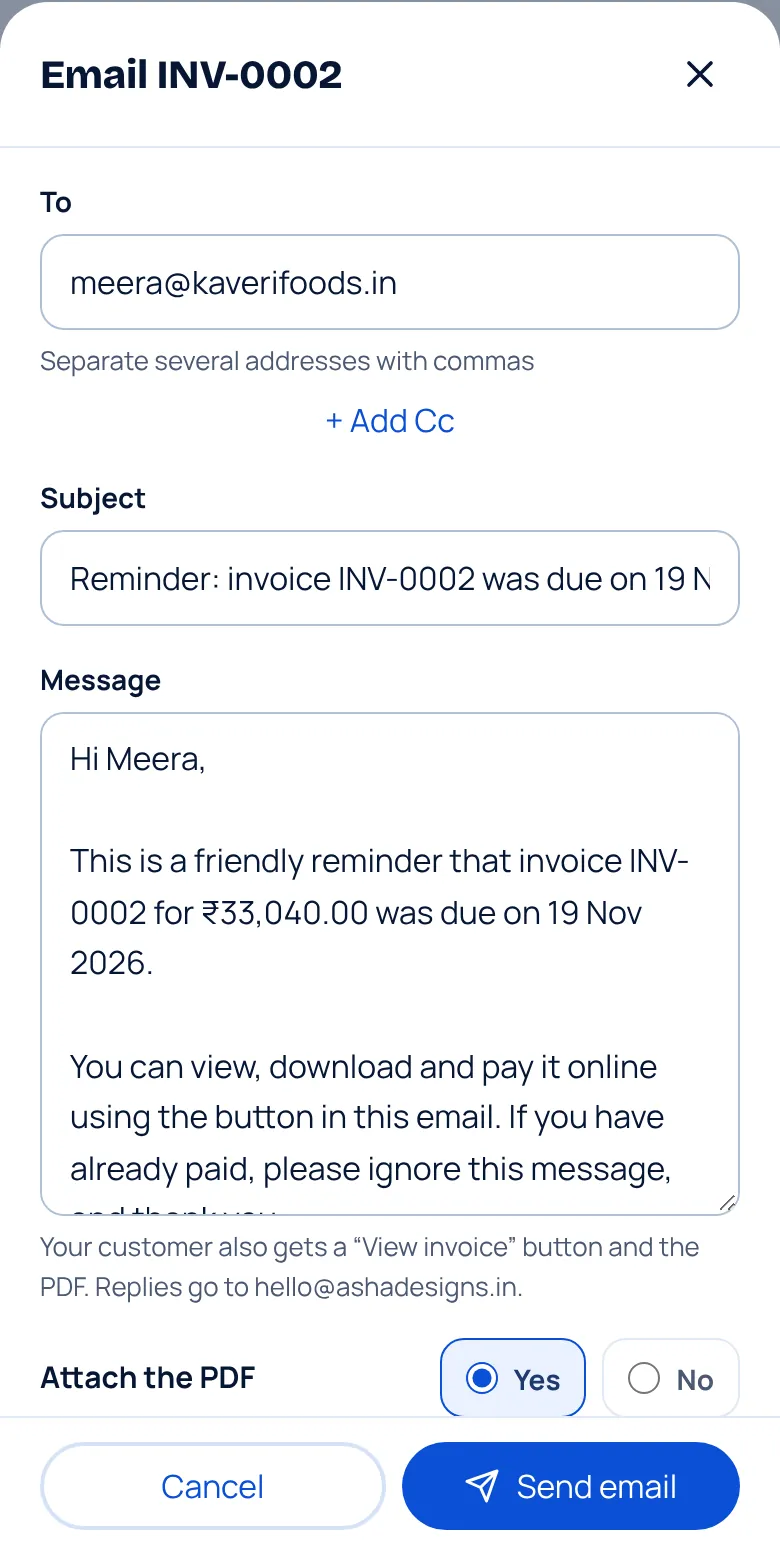
The email form is filled in for you: the customer’s email, a subject and a friendly message. Change anything you like, add Cc addresses, and choose whether to attach the PDF. Replies go to your business email.
-
3See when it is opened
The invoice’s History shows when it was sent and when the customer opened the online invoice. The customer can download the PDF and, if you have online payments on, pay with one tap.
Good to know
- See what your customer sees under the buttons opens the online invoice page exactly as your customer sees it.
- For an overdue invoice the email is written as a polite reminder. To send reminders automatically, see payment reminders.
Questions
Can I change an invoice after sending it?
Yes, most details can still be edited, but not the customer or the number. To correct the amount after it was reported for tax, create a credit note. See fix or cancel an invoice.
Does the customer need an account?
No. They open the link or the PDF; nothing to sign up for.