
Everything about how your invoices look is in Settings › Invoice look. Changes apply to new invoices and drafts.
-
1Upload your logo
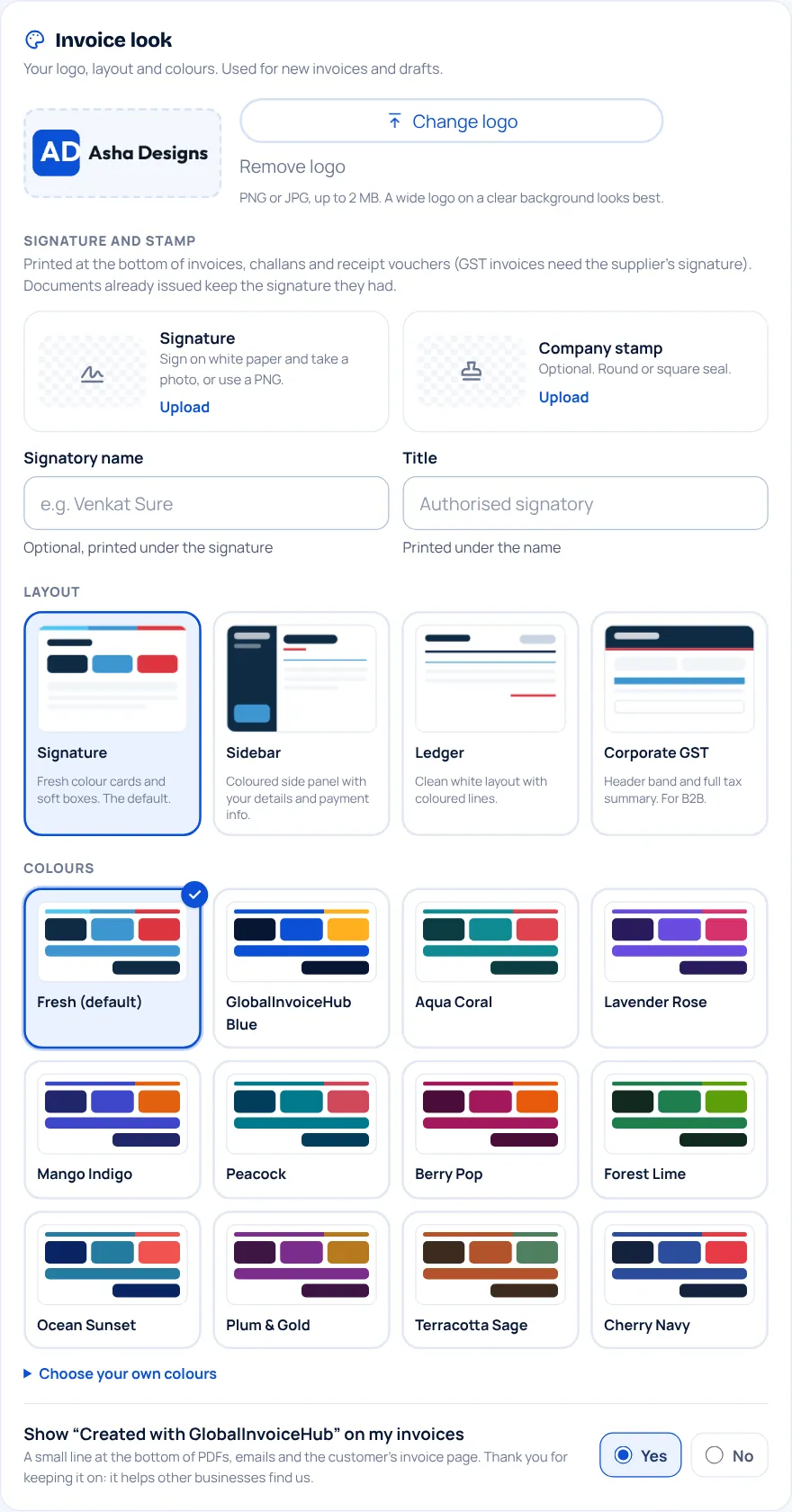
Press Change logo (or Upload logo) and choose a PNG or JPG up to 2 MB. Empty space around the logo is trimmed automatically, so it prints large and sharp.
-
2Add a signature and stamp
Sign on white paper and take a photo, or upload a PNG. Add a company stamp if you use one, and the signatory’s name and title. GST invoices need the supplier’s signature.
-
3Choose a layout and colours
Pick one of four layouts: Signature (the default), Sidebar, Ledger or Corporate GST, and one of 12 colour sets, or Choose your own colours to match your brand. The preview shows a small invoice in each colour set.
Good to know
- On the free plan, invoices end with a small “Created with GlobalInvoiceHub” line. With Pro you can turn it off at the bottom of Invoice look.
- Invoices already sent keep the look they were issued with.
Questions
Why does my logo look small?
Use a logo without a lot of empty space around it. A wide logo on a clear background works best.